Staged publishing for npm packages
Table of contents
Staged publishing adds an approval step before packages go live on the npm registry. Instead of publishing directly with npm publish, you can submit packages to a staging area with npm stage publish. A maintainer must then review and explicitly approve the staged package — with two-factor authentication (2FA) via the CLI or npmjs.com — before it becomes publicly available.
Staged publishing is useful when you want an extra review step before a package version becomes available on the registry.
Note: Staged publishing requires npm CLI version 11.15.0 or later and Node version 22.14.0 or higher.
How staged publishing works
Staged publishing has three steps:
Prerequisites
Before using staged publishing, ensure the following:
- You have publish access to the package
- The package already exists on the npm registry — you cannot stage a brand-new package
- 2FA is enabled on your npm account
Stage a package
-
On the command line, navigate to the root directory of your package.
cd /path/to/package -
To stage your package, run:
npm stage publishThis submits your package to a staging area.
Note: npm stage publish does not require 2FA.
Review a staged package
After you stage a package, you can inspect it in the CLI or on npmjs.com.
Using the CLI
To list staged packages you have access to:
npm stage list [<package-spec>]
To view details for a specific staged package:
npm stage view <stage-id>
To download the staged package tarball for inspection:
npm stage download <stage-id>
Using npmjs.com
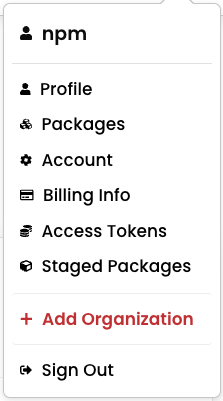
Open the Staged Packages tab to review staged packages and find the package you want to approve.
Approve a staged package
To publish a staged package to the registry, approve it with 2FA.
Using the CLI
To approve a staged package and publish it to the live registry:
npm stage approve <stage-id>
Using npmjs.com
On npmjs.com, review the staged package in the Staged Packages tab, then click Approve.

Note: You will be prompted for 2FA verification whether you approve the package in the CLI or on npmjs.com.
Using staged publishing with trusted publishers
If you use trusted publishing (OIDC) from CI/CD, you can use staged publishing to submit a package for review before it goes live. A maintainer must still review and approve the staged package with 2FA.
For more information on configuring trusted publisher permissions, see "Trusted publishing for npm packages."